|
 |
 |
 |
 |

|
||||
|
|||||||||
|
|
 |
|||||||||||||||||||||
|
|
||||||||||||||||||||
|
FTP Instructions The step-by-step on putting your finished site on the web General Information First a little information
and explanation of terms. A webpage is not just one file but a combination of image and text files put together into a document that can be viewed by a browser (example: Internet Explorer or Netscape) so remember to upload all your image files as well. When people go to http://www.tcsn.net/yourpage people will see whatever is in the document called "index.html". (You can use "index.htm", "default.htm", or "home.html" if you like; "index.html" is most standard and therefore recommended.) Uploading With Other Software Your FTP server is "ftp.tcsn.net".
Cute FTP The fastest way
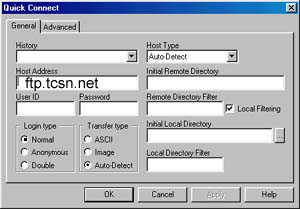
is to use quick connect. Click FTP, QUICK CONNECT and use the picture
below for a guide. Remember, the left side is your directory on your
machine and the right side is your directory on the server. Find the
file on the right and simply drag it to your directory. If your address
is www.tcsn.net/? then upload to ftp.tcsn.net if your address is a
domain. Example: mysite.com use ftp+the domain name. Example: ftp.mysite.com.
Use the user name and password from your regular account and it will
drop it into your directory.
Netscape Gold
Microsoft
FrontPage
Without Frontpage extentions:
Windows95 Built-In FTP Among Windows95's hidden secrets, there is a fully functional FTP client. (Its all-text and keyboard-centered interface may be unfamiliar to you, unless you've used the Berkeley FTP client before, in which case it should look very familiar to you.) We provide technical support only for this FTP client due to its simplicity, its power, and -- well, lots of people have it. To start it, go to a command prompt and type:
A brief welcome message should appear:
Tell the system who you are by typing in your user ID then pressing Enter.
Type in your password (in all lowercase, with no spaces!). You won't see anything echo back at you -- not even stars, so it's important that you type slowly and carefully here. If you did, then you should see this:
One more precaution that needs to be taken first -- we want to ensure the computer, in its efforts to be helpful when transferring text files, doesn't scramble our files when we upload. So type:
Now you're all set to start uploading files! Uploading, Downloading These are commonly confused terms. When most engineers draw their diagrams of a computer installation, they often place the clients (the users who want services from the installation) at the bottom of the diagram (and sometimes in their design priorities too!). Given this, it's easy to remember that UPloading goes from the bottom of the diagram up to the bigger machine. (It helps if you visualize a pyramid.) DOWNloading, of course, is the clients at the bottom receiving data from the bigger machine. Uploading a single file is done with the "put" command (because you're putting files on the server, not getting files from it). For example:
will take the file on your desktop called "index.html" and place it on our server, with the name "index.html". You can also tell it to use a different name on our end:
will take the file "joe-idx.htm" on your desktop and place it on the server under the name "index.html". To take full advantage of the visual possibilities of the web, many people display images within their web documents, or set up a pretty background image. You'll also have to upload these files.
puts the file on your desktop called "myimage.jpg" onto the server as "myimage.jpg", of course. If you had to do this for ten files, it could be tedious. To upload multiple files, use:
which will put all files with the extension .jpg onto the server, under the same names, asking you about each one. (This can also be handy if you forgot the exact filename of something, and it's not on your desktop.) Two special characters usable for mput are *, which matches anything it can, and ?, which matches one character position. You might want to check that all the files made it up completely (I haven't lost a file yet, but it's a reassuring thing to do) or maybe you uploaded your page some time ago and want to see what files you have in your FTP directory. You can type:
or
to see a full directory listing which, if you have very many files, will scroll by very quickly. In that case you can try:
to have it displayed screenful by screenful. To close down the FTP connection for now and exit the FTP program, type
Catastrophe Strikes If you should ever lose any files on your own copy of your web page (we recommend keeping a copy locally for faster editing), or butchered your own copy beyond recognition, "get" and "mget" are there to help. Simply type:
and you can get the index.html file that's the same as everyone viewing your page sees. (It will be downloaded to a file named "index.html"; you can add a second filename like:
to save the file "index.html" on our server with the more descriptive "homepage-index-oct1997.txt" on your system. If you accidentally trash the whole directory, you can use "mget" the same way you used "mput", except in the other direction. To download your entire web content directory, you'd do:
and watch the files build up on your desktop. (But see the "lcd" command below.) For large batches of uploads or downloads, you can use the "prompt" command to make the FTP program change its mind about asking you for each file. Usually this is turned on; the first time you use it it will probably look like
Next time you say "prompt" it will tell you
to assure (or remind)
you that it will ask you about each file it finds. Finally, you can use the "lcd" (local change directory) command to change the area on your system where the FTP program places files for download and takes files for upload. If you have a folder on your desktop and want to take files from it:
and the FTP program will use the moose-pictures folder as its "current directory" from now on, until you tell it again otherwise (e.g. if you had another folder inside that one). A special directory name is "..", and it always refers to the directory outside the current directory. So to get back to the desktop from the above command,
Advanced Tricks Deleting files from the server is accomplished like:
If you wish to monitor the progress of your FTP transactions, you can type
Thereafter (or until you type "hash" again), all your downloads and uploads will display a # sign for each 2k of data transferred. There's a rename command too;
If you're familiar with how DOS manages folders within one another, the familiar commands "mkdir", "rmdir", and "cd" are available to you (make sure you use / slashes instead of \ backslashes!) A handy trick to have is the ! command, which acts similar to Start -> Run from Windows;
will give you a directory listing of the directory you started ftp up in by running the DOS command "dir".--
|
Call TCSN Toll-Free 1-800-974-DISK
|