Publishing
to the Web using MS FrontPage™

There
is a $25 one time fee for setting up the extensions on your site.
With a FrontPage website your address or URL is a little different
than a typical www.tcsn.net/mypage address hosted here
at TCSN. Instead your address will be something like fp.tcsn.net/mypage
If
your hosting your own domain with us
like www.mypage.com there is no change in the address.
Once
we have setup your Webspace you are ready to design your site or upload
your pages you have designed on your computer.
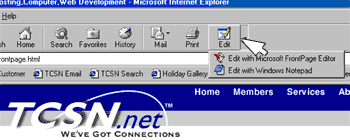
What we have found to be the easiest is to surf directly to your website
after it has been set up here at TCSN and click on the edit button
on your tool bar or use the EDIT WITH FrontPage under the file menu.
You will be asked for the user name and password and the page should
open in the editor ready for you to make changes.
The advantage to MS FrontPage is your ability to edit the pages "live"
or directly on the server. A WORD OF CAUTION if your editing
on the server live and you make a change and save it over the existing
file your changes are permanent. Nothing beats a good backup so if
your worried about screwing something up make a backup copy of your
files first. A typical mistake of new users is to confuse the local
view (files on your machine) with the server view (files on the host
or server machine). You can keep a complete copy of the web on your
own machine and test your changes there. That way when your ready
to publish the site you can publish only the pages you have tested
and saved.
These screenshots will help new users with getting you connected and
your files uploaded.

When you start the program the first time you'll need to tell it the
location of your website.
If you have a domain put it in here (example mypages.com)
The next time you will see it on this list but the first time click
on MoreWebs...
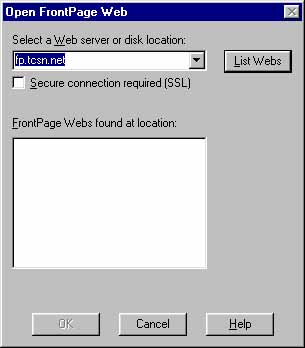
The web server for your web will be fp.tcsn.net if your using a site
like fp.tcsn.net/mypages Type the server name fp.tcsn.net into the
blank as shown above and click List Webs.
Here is where you would choose disk location or local view to use
personal webserver on your machine to work offline.
A list will appear showing the webs on our server highlight your website
and click OK.
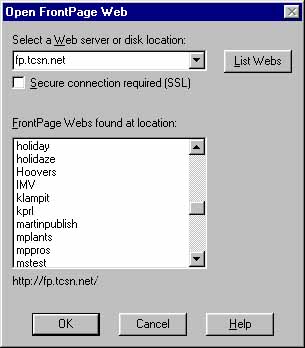
Next it will ask your Username and Password enter these in lower case
letters and click enter. You will now see the files in your folder
or web directory. Much more info is available from the program under
the HELP menu.












